How to track Klaviyo flows and email campaigns in Google Analytics
by Edward Upton
Klaviyo is one of the most popular email marketing platforms for Shopify stores, but the analytics setup is often overlooked. By following a few simples rules, you can ensure accurate Klaviyo data alongside other sales and marketing data in Google Analytics.
In this article we cover how to set up Google Analytics tracking for Klaviyo, including best practices for UTM parameters and dynamic variables, and how this tracking works alongside Littledata’s Shopify to Google Analytics 4 connection.
Why Klaviyo
Klaviyo is a popular customer engagement platform used by over 50,000 Shopify merchants. Their focus is on email and SMS automation, and they have been one of the major success stories in the Shopify ecosystem, recently closing a $200 million funding round.
Klaviyo’s features for Shopify include:
- Codeless signup forms
- Pre-built flow templates for quick automation
- Email campaigns for customers and leads
- Advanced segmentation and personalization, including product recommendations
Many of Littledata’s Shopify customers use Klaviyo in one way or another, as do almost all of our Shopify Plus customers. But we’ve noticed a trend where even the biggest Klaviyo users aren’t correctly tracking Klaviyo flows in GA, which ends up blocking data-driven decisions for growth. Read on to see how to fix this.
Why Google Analytics
The Klaviyo dashboard has useful built-in reporting, but for ecommerce managers focused on more than just email, there are some significant limitations compared with a dedicated analytics platform like Google Analytics 4 (GA4).
One key limitation is for sales attribution (marketing attribution for online sales). In Klaviyo, any sale that happens after engagement with an email is attributed to that email. This overstates Klaviyo’s contribution to sales. For example, if a user first comes from a Facebook Campaign, then clicks on an abandoned cart email from Klaviyo, then goes on to complete a purchase after being retargeted in Facebook, Klaviyo will claim this as owned revenue attributed to that email engagement and credit Facebook with nothing!
Another limitation of reporting in Klaviyo’s dashboard is that it’s hard to see the contribution of an entire email flow to sales, as opposed to the impact of a particular email message in the flow.
In Google Analytics (if set up correctly) you can see multi-channel contribution to sales, comparing apples with apples across different marketing channels.
What is UTM tracking?
UTM parameters are extra data in the link the user clicks to tell Google Analytics (and Shopify) where the click came from. These parameters are automatically added by Google Ads, but for other platforms (e.g. Facebook or Klaviyo) you will need to add them manually or via the software.
Why does this matter? Because link clicks coming without a UTM tag will typically be treated by GA as “direct” traffic — in other words, the source of those visits will be unknown.
Note: Read Littledata’s free guide to common reasons Shopify doesn’t match Google Analytics
Recommended settings
To provide the most reporting flexibility we recommend having the same standard UTM parameters across all email flows and campaigns.
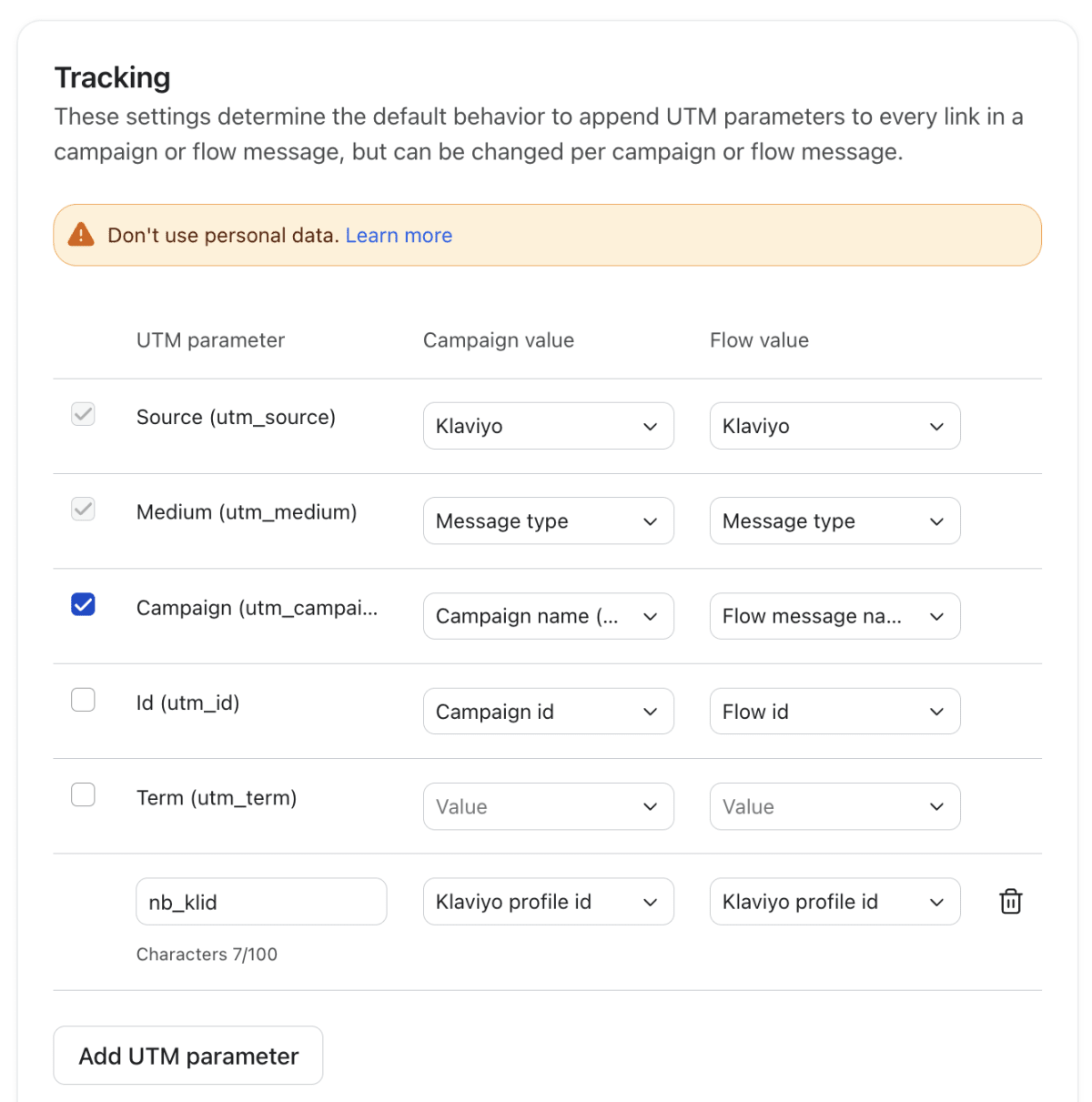
Klaviyo allows dynamic variables to be used in your default UTM tracking settings. To get the most out of your Klaviyo reporting in GA, we recommend a static value for Source, Message type for Medium, and dynamic values for Campaign and Content. To change these defaults, click your account name in the bottom left of Klaviyo, select Settings, then go to Other > UTM tracking.
| UTM parameter | Campaign value | Flow value |
| Source (utm_source) | ‘Klaviyo’ | ‘Klaviyo’ |
| Medium (utm_medium) | Message type | Message type |
| Campaign (utm_campaign) | Campaign name (Campaign id) | Flow email name (Flow email id) |
| Content (utm_content) | Link text or alt text | Link text or alt text |
Tip: Content is not a default parameter in Klaviyo, so you will need to add that manually (enter `utm_content` as a new parameter).
Heads up: on 2 June 2025 Klaviyo changed the default
utm_mediumfromcampaignandflowto Message type. Accounts that had saved custom UTM settings before that date kept their old values, so it is worth checking what yours is set to rather than assuming.
Message type resolves to the channel that sent the link — email for emails, sms for text messages — so email and SMS stay separable in your GA reports instead of collapsing into one medium. If you only ever send email it behaves exactly like the static ‘email’ value we used to recommend here; if you send on more than one channel, it is the setting you want. Our help centre covers the SMS side in full in tracking Klaviyo SMS clicks.
With a static Source and Message type as the Medium, you will be able to see Klaviyo compared against other marketing channels in GA, and in particular how Klaviyo campaigns contribute to customer lifetime value and other key metrics for Shopify sales and marketing. We do not recommend sticking with Klaviyo’s default UTM settings, where Klaviyo flows, for example, are given a dynamic variable that pulls in the name of the flow. You can already see that type of data in the Klaviyo analytics dashboard — better to use GA for complete marketing analysis.
Whichever naming convention you choose, consistency is essential. Many Littledata customers create internal spreadsheets to manage UTM naming conventions and channel groupings in GA, and run regular QA checks to ensure consistency. Note that we have analytics audit checks within the Littledata app, and we now offer analytics training on Plus plans.
Enabling UTM parameters
In addition to setting up the UTM Parameter values in your Klaviyo account, you need to enable UTM tracking to ensure that those parameters are applied to all emails in flows and campaigns.
The first step is to enable global UTM settings.
- Click your account name in the bottom left, select Settings, then go to Other > UTM tracking
- Toggle Automatically add UTM parameters to links on, then click Save. This turns UTM tracking on by default for new campaigns and flow messages. Note that it does not switch on tracking for existing messages that already have it disabled.
Now that you have enabled UTM tracking, you need to make sure your flows and campaigns actually use those account defaults rather than their own custom parameters. This should already be the case, but it’s good to double-check.
- Disable any custom UTM tracking for flows or campaigns
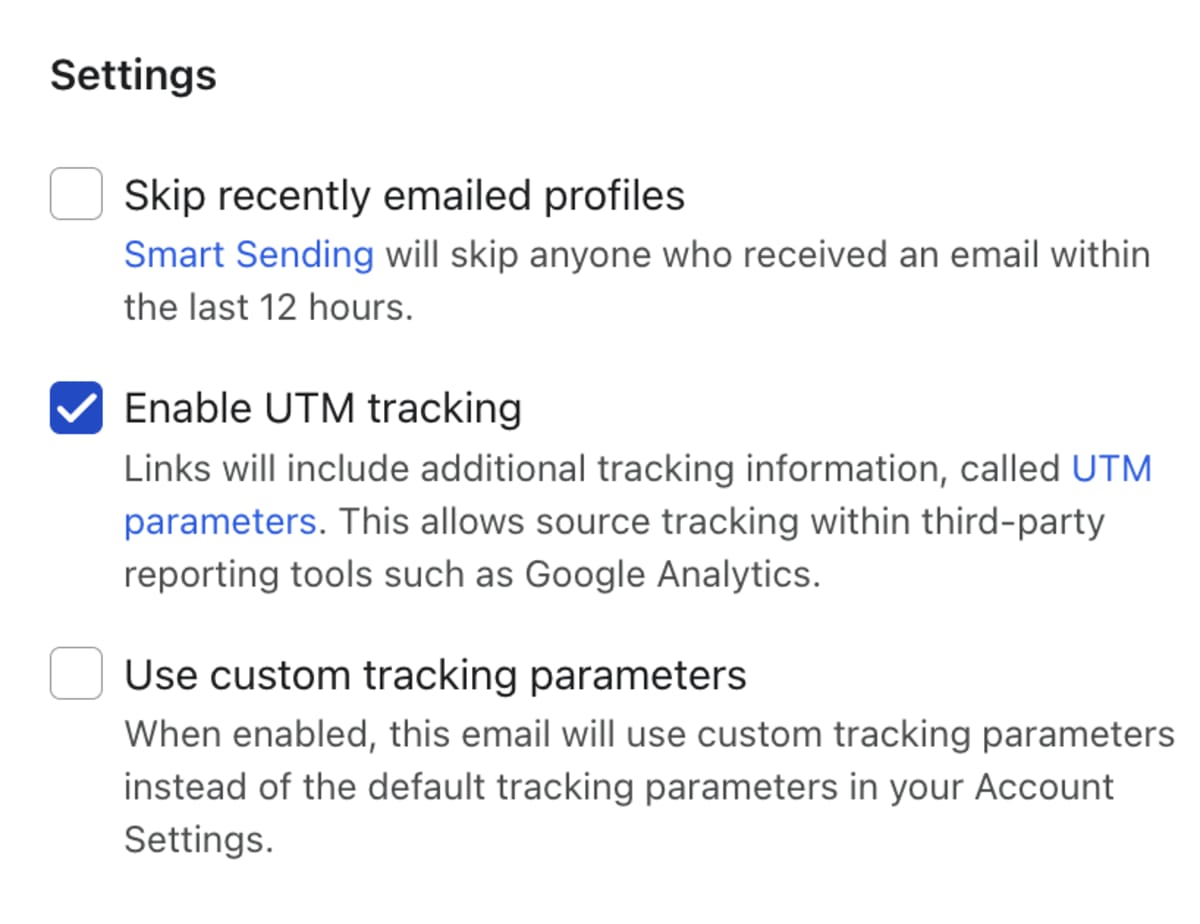
- For individual flow messages, go to Flows, open the flow, and select the message in the flow builder — not in the content editor. Under Settings, check Enable UTM tracking, and leave Use custom tracking parameters unchecked so the message follows your account defaults. With it unchecked you get a read-only summary of the parameters the message will send, which is exactly what you want to see
- For campaigns, turn Include tracking parameters on and leave the Customize tracking parameters toggle off

- If a campaign has already been scheduled, pause it first — Klaviyo will not let you change its UTM parameters while it is scheduled
Reporting on Klaviyo flows in Google Analytics
Google Analytics is a powerful reporting tool once you get to know how channel groupings and custom dimensions work. Here’s a quick look at how to analyze your Klaviyo data in GA.
Looking at campaign conversions in Google Analytics
After you have enabled our recommended settings for UTM tags, you will have access to Klaviyo flow and campaign data in GA. You can look at this on its own, but also compared against other channels for engagement and acquisition.
To see revenue and orders attributed to these campaigns, open Reports > Acquisition > Traffic acquisition, change the primary dimension from the default channel grouping to Session source / medium and find Klaviyo / email, then add Session campaign as a secondary dimension.
If you set up the Flow email name as the utm_campaign above, then you can look at the contribution of that whole flow to sales. For example, without caring if the user clicked on email 1 or 2 in a 4-email flow, did clicking on any of the emails in that flow — for example, the ‘Browse Abandonment’ flow — result in sales?
Going further, you could build a segment in an exploration for users who came via an Instagram campaign, and see to what degree they were influenced by the email sequence.
Will Google Analytics match Klaviyo?
How does the data you now have in Google Analytics compare with what you see in your Klaviyo dashboard?
In the Advertising section, under Attribution, you can compare how different attribution models value your marketing channels. GA4 offers three: Data-driven attribution, Paid and organic last click — the same model Universal Analytics called last non-direct click — and Google paid channels last click.
This is a real reduction in what you can do. The first click, linear, time decay and position-based models were retired in November 2023, so you can no longer line GA4 up against a model close to Klaviyo’s own. The comparison worth making now is data-driven against last click: if Klaviyo looks materially better under data-driven, its emails are doing assisting work that a last-click view hides.
Expect the two tools to disagree regardless. Klaviyo and GA4 apply different attribution rules over different windows, and GA4 has no ‘all click’ model, so the revenue GA attributes to Klaviyo will always be the lower number. Treat GA4 as the cross-channel view and Klaviyo as the channel-level view, rather than expecting them to reconcile. Why your Shopify store shows different revenue in GA4 and Klaviyo works through the seven reasons in detail.
The Attribution paths report — listed as Key event attribution paths under Key events in some properties — replaces the old Top Conversion Paths report, and shows where Klaviyo sits in the sequence of touchpoints leading to a purchase.
Note: Google Analytics data can also be used as a source for other reporting tools, such as Looker Studio (formerly Data Studio) and Tableau.
Using Klaviyo with Segment
If you are looking to do more with your Shopify and Klaviyo data, consider Segment. Littledata’s Shopify source for Segment automatically sends a rich data set for use with a range of Segment destinations.
Not only does our Segment connection get all of the post-click events into Segment, but it also sends any event associated with an email address onto Klaviyo as well — providing a richer set of events, without a developer, than Klaviyo’s own Shopify event tracking. For example, you can retarget users in Segment who have purchased a certain value, or got certain products to a stage of the checkout — all without writing a line of code.
Note: You can now track Klaviyo email and SMS clicks with Littledata: Learn More
Read more about how Littledata’s Segment connection works, and check out the latest updates to our Shopify source for Segment. The connection now supports analytics destinations such as Mixpanel, Vero and Kissmetrics, and email marketing destinations including Klaviyo, Hubspot and Iterable.